
Scope Project Roadmap GitHub Repos Releases Tutorials Requirements
Tutorial - CMCD Reporting
This tutorial allows to: Use CMCD metrics reporting for 5G Media Streaming.
CMCD Reporting executes the collection of Common Media Client Data (CMCD) from the Media Player and the forwarding of CMCD metrics through the 5G Media Streaming system for monitoring and analysis purposes. CMCD information is reported in‑band with media requests using HTTP query parameters or request headers and is extracted by the Application Server during normal media delivery. The Application Server forwards the collected CMCD metrics to a metrics collector, where they can be visualized using a dashboard to analyze media session behavior and content delivery characteristics. This tutorial describes how to set up and enable CMCD Reporting using the 5G‑MAG Reference Tools and how to access the resulting CMCD metrics.
Server-side Setup
Step 1: Install the Application Function
For details please refer to the corresponding section in the basic end-to-end guide.
Step 2: Install the Application Server
For details please refer to the corresponding section in the basic end-to-end guide.
Step 3: Start the Application Server
For details please refer to the corresponding section in the basic end-to-end guide.
Step 4: Basic Configuration of the Application Function
Follow the basic configuration steps documented in the basic end-to-end guide.
Step 5: Start the Application Function
Follow the command documented in the basic end-to-end guide.
Step 6: Deploy the cmcd-toolkit
Step 6.1 Run git clone https://github.com/5G-MAG/cmcd-toolkit.git
Step 6.2 Compose
chmod 777 cmcd-toolkit/grafana/local-stack/dashboards/cmcd-dashboard.json Run docker compose up
Step 6.3 Login to grafana at http://:8081
    ○ User: admin
    ○ Password: grafana
Step 7: Config for Openresty
Now that we have set up the cmcd-toolkit dashboard. The next we’ll hook the Lua script converting CMCD v1 to v2 to openresty.
Step 7.1 Config for Openresty
Config for Openresty as the nginx.conf file printed as below: In init_by_lua_block, for “collector_event_url” the IP, modify the
http { error_log logs/error.log notice; access_log logs/access.log; include mime.types; default_type application/octet-stream;
sendfile        on;
keepalive_timeout  65;

# ===============================
# Lua runtime environment
# ===============================
lua_package_path "/usr/local/openresty/site/lualib/?.lua;/usr/local/openresty/lualib/?.lua;/usr/share/lua/5.1/?.lua;;";
lua_shared_dict cmcd_cfg 1m;

# ===============================
# Put collector URL into shared dict
# ===============================
init_by_lua_block {
    local dict = ngx.shared.cmcd_cfg
    dict:set("collector_event_url", "http://<DASHBOARD_IP>:3000/cmcd/response-mode")
}

server {
    listen 0.0.0.0:8088;
    server_name localhost;

    access_log  logs/access.log;

    rewrite_by_lua_block {
        ngx.log(ngx.ERR, "SERVER REWRITE HIT: ", ngx.var.request_uri)
    }

    # ===============================
    # CMCD → event-mode JSON
    # ===============================
    location ^~ /media/ {
        rewrite_by_lua_block {
            ngx.log(ngx.ERR, "INLINE REWRITE HIT: ", ngx.var.request_uri)
            dofile("/usr/local/openresty/nginx/lua/cmcd_response_json.lua")
            }

        content_by_lua_block {
            ngx.exit(204)
        }
    }

    log_by_lua_block {
        ngx.log(ngx.ERR, "LOG PHASE HIT: ", ngx.var.request_uri)
    }

    location / {
        root   html;
        index  index.html index.htm;
    }

    error_page   500 502 503 504  /50x.html;
    location = /50x.html { root html; }
} }
Step 7.2 Hook the Lua script converting CMCD v1 to v2 to openresty
sudo cp /local/mnt/workspace/shilding/nginx.conf /usr/local/openresty/nginx/conf sudo cp /local/mnt/workspace/shilding/cmcd_response_json.lua /usr/local/openresty/nginx/lua Reload sudo chown root:root /usr/local/openresty/nginx/lua/.lua sudo chmod 644 /usr/local/openresty/nginx/lua/.lua
Step 7.3 Reload configuration
sudo /usr/local/openresty/nginx/sbin/nginx -t && sudo systemctl reload openresty
Step 8: Update the dashboard(Only need if you update the dashboards)
cp the updated cmcd-dashboard.json to cmcd-toolkit/grafana/local-stack/dashboards/ cd cmcd-toolkit/grafana/local-stack/dashboards/ chmod 777 cmcd-dashboard.json
cd ./cmcd-toolkit/ docker compose restart
Step 9: Test the dashboard with fake CMCD
Run the cmd below on AS or on other machine(replace the ip to AS’s IP), you’ll see a new CMCD has been received in the dashboard: ts=$(date +%s%3N) curl -i “http://127.0.0.1:8088/media/test.m4s?CMCD=
cid="_30fps/bbb2_30fps.mpd",
sid="demo",
su,
br=1500,
d=4000,
bl=3500,
tb=8000,
dl=0,
mtp=18000,
nor="bbb2_30fps_2.m4s",
nrr="0-2000",
pr=1.0,
sf=d,
st=v,
ot=i,
ts=${ts},
v=1”
Step 10: Support on the Application Server(need to do)
Need to merge the nginx.conf to the nginx.conf.tmpl
Client-side Setup
As we are all set on the server-side now we can focus on the client side.
Step 1: Installation, Configuration and Running the 5GMSd Client
Please follow the instructions documented in the basic end-to-end guide setup guide.
Step 2: Creating CMCD Report
While consuming content via our previously installed 5GMSd Application Server and 5GMSd Application Function the client is automatically collecting and sending CMCD Reports.
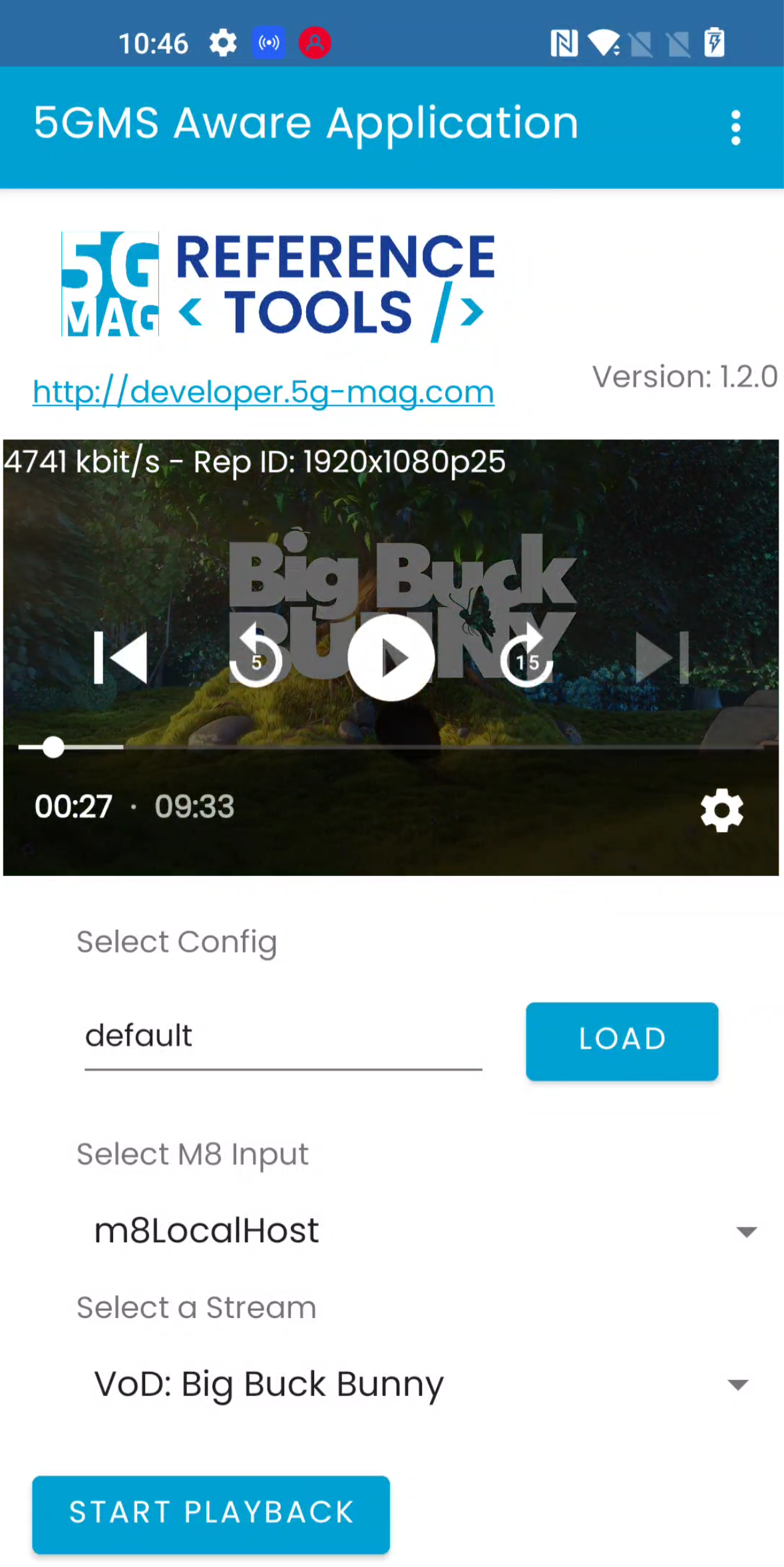
Step 3: Inspecting the CMCD Report in Dashboard
Navigate to http://
Logs for Debugging
Nginx access:
tail -n 0 -f /usr/local/openresty/nginx/logs/access.log
Nginx error :
tail -n 0 -f /usr/local/openresty/nginx/logs/error.log
CMCD Collector(watch the conversion result CMCD v1 to v2):
docker logs -f --tail 10 cmcd-toolkit-collector-1 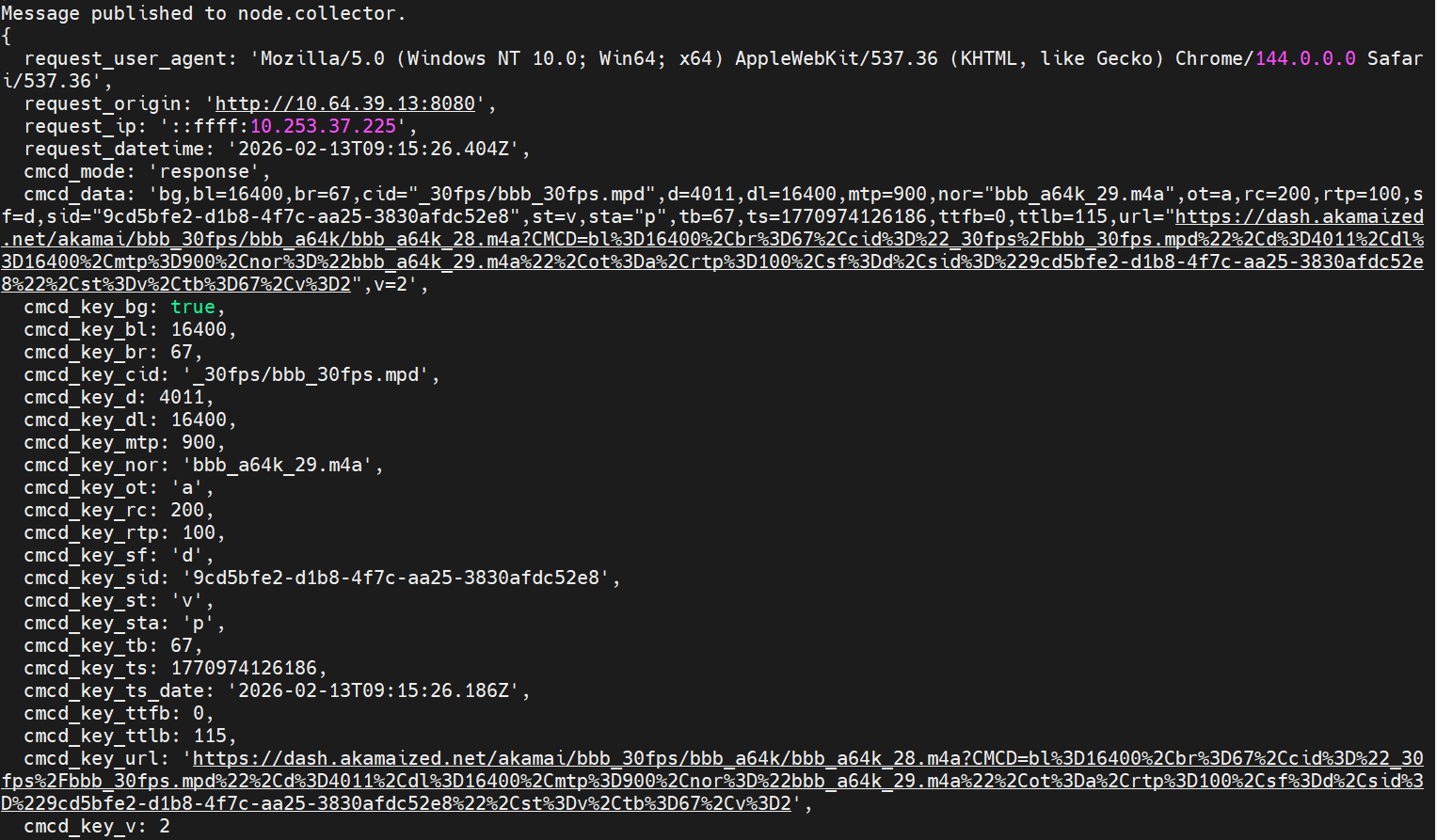
Fluentd(watch the log of database of the dashboard)
docker logs cmcd-toolkit-fluentd-1 | grep -i "node.collector"
Grafana(watch the log of the dashboard)
docker compose logs grafana | egrep -i "provision|dashboard|yaml|error|warn" | tail -n 200
Database for Debugging
shilding@jianqin-gv:~$docker exec -it cmcd-toolkit-influxdb-1 influx ————– USE analytics; SHOW MEASUREMENTS; ——— SHOW FIELD KEYS FROM “cmcd_metrics”; SHOW TAG KEYS FROM “cmcd_metrics”
SHOW TAG VALUES FROM “cmcd_metrics” WITH KEY = “cmcd_key_sid” WHERE time > now() - 30m;
SELECT * FROM “cmcd_metrics” WHERE “cmcd_key_sid”=’3f63f118-a5c5-44ba-a155-9522904b44cb’ ORDER BY time DESC LIMIT 5; SELECT * FROM “cmcd_metrics” WHERE “cmcd_key_sid”=’demo’ ORDER BY time DESC LIMIT 5; SELECT COUNT(*) FROM “cmcd_metrics” WHERE “cmcd_key_sid”=’demo’; ————–
shilding@jianqin-gv:~$ docker exec -it cmcd-toolkit-influxdb-1 influx Connected to http://localhost:8086 version 1.8.10 InfluxDB shell version: 1.8.10
USE analytics; Using database analytics SHOW MEASUREMENTS; name: measurements name —- cmcd_metrics SHOW FIELD KEYS FROM “cmcd_metrics”; name: cmcd_metrics fieldKey fieldType ——– ——— cmcd_data string cmcd_key_bg boolean cmcd_key_bl integer cmcd_key_br integer cmcd_key_bs boolean cmcd_key_d integer cmcd_key_dl integer cmcd_key_e string cmcd_key_ltc integer cmcd_key_msd integer cmcd_key_mtp integer cmcd_key_nor string cmcd_key_ot string cmcd_key_pr float cmcd_key_rc integer cmcd_key_rtp integer cmcd_key_sf string cmcd_key_st string cmcd_key_sta string cmcd_key_su boolean cmcd_key_tb integer cmcd_key_ts integer cmcd_key_ts_date string cmcd_key_ttfb integer cmcd_key_ttlb integer cmcd_key_url string cmcd_key_v integer request_datetime string request_origin string SHOW TAG KEYS FROM “cmcd_metrics” name: cmcd_metrics tagKey —— cmcd_key_cid cmcd_key_sid cmcd_mode request_ip
request_user_agent